Photoshop CSV Mockup Automation
By Usama Saad · Updated Aug 28, 2026
Build a reliable CSV that selects PSD templates and maps spreadsheet columns to Photoshop text layers and smartobjects.
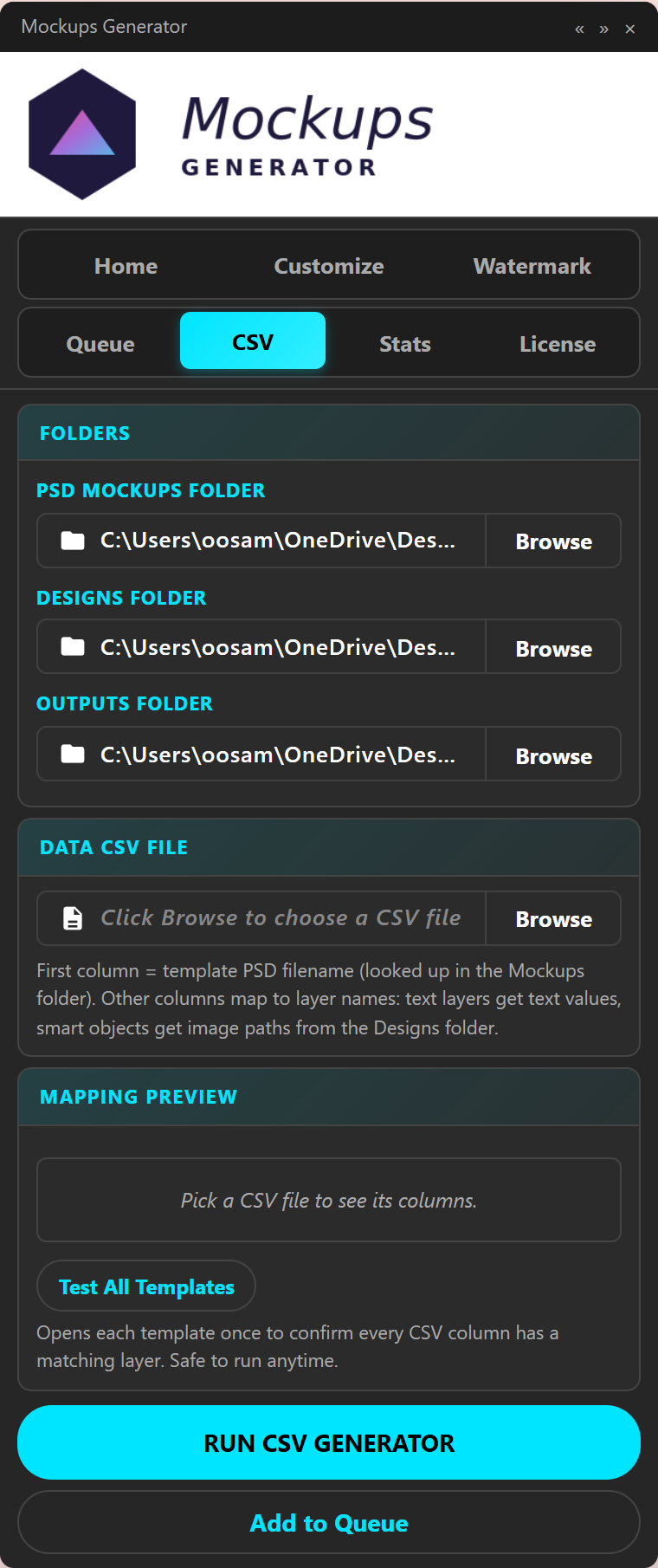
CSV mockup automation is useful when every output is a specific product or personalization record. Instead of combining every design with every template, the panel processes one intended result per row.
Plan the output fields
List the values that change between outputs. Common fields include template, SKU, title, color, customer-facing text, front artwork, back artwork, and badge image.
Keep private customer information out of the CSV unless the production job genuinely requires it and the file is stored securely.
Prepare Photoshop layer names
Use stable names for text layers and smartobjects. If the CSV has front_art and back_art headers, the PSD mapping must identify matching targets. Avoid decorative layer names that are likely to change between template revisions.
Create the CSV
The first column selects the PSD filename. Other columns provide values for mapped layers.
template,sku,product_name,front_art,back_art
Tee_Black.psd,TS-101,Night Garden,garden-front.png,garden-back.png
Mug_White.psd,MG-202,Stay Curious,curious-wrap.png,
Quote fields that contain commas. Export as UTF-8 CSV. The parser supports common spreadsheet details such as quoted values, embedded commas, and a UTF-8 byte order mark.
Preview the mapping
Load the CSV and inspect which columns match text layers and smartobjects. Run template validation to find misspelled PSD filenames, missing layers, and incompatible templates.
Test difficult rows
Include the longest text, non-English characters, missing optional values, and extreme artwork aspect ratios in the sample. A valid mapping does not guarantee that long text fits inside the visual design.
Configure output naming
Use a stable identifier such as SKU in the filename. Confirm that duplicate rows do not overwrite one another. Separate formats into organized folders when the same row produces WEBP, PNG, JPG, PSD, or PDF output.
Run and audit the batch
Compare the number of expected rows with the generated outputs. Review a sample across different templates. Check text overflow, artwork crop, missing images, and filename order before delivering or uploading the files.
Learn the Photoshop CSV data-merge workflow and review text-and-image automation.
Continue with Photoshop mockup automation
Browse all Photoshop tutorials, explore the Photoshop bulk mockup generator, or try 150 lifetime generations free.